

Many Mac users (macOS 26) have found that even with VPN enabled and browsers working fine, Telegram keeps showing "Connecting..." with messages unable to send or receive.
This usually happens because Telegram's networking mechanism conflicts with system privacy settings. With Tongbao VPN (www.tongbaovpn.com), just follow these three steps to completely solve your Telegram connection issues!
I. Why Can't Your Mac Connect to Telegram?
In macOS 26, Apple strengthened底层 network protection:
-
System Blocking: The default "Limit IP Address Tracking" prevents Telegram from properly recognizing VPN tunnels.
-
Proxy Failure: The app isn't communicating through proxy servers, so traffic remains blocked.
II. The Ultimate Solution to Connect Telegram
Step 1: Optimize Mac System Network Settings (Foundation)
This ensures VPN traffic isn't intercepted by the system:
-
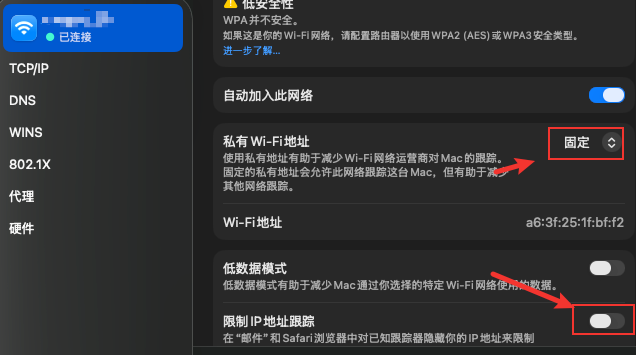
Click the Wi-Fi icon in the top-right corner of your Mac, select Wi-Fi Settings.
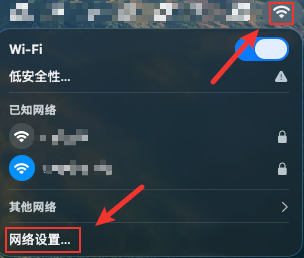
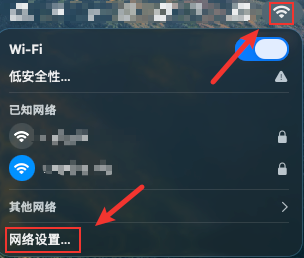
-
Click "Details" next to your currently connected Wi-Fi.
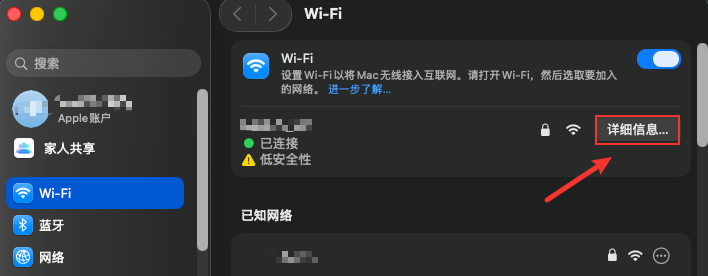
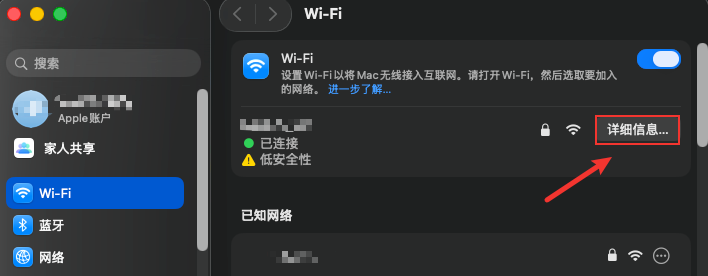
-
Fix IP Identity: Find the "Private Wi-Fi Address" field, change from "Rotate" or "Off" to "Fixed".
-
Remove Network Restriction: Find the "Limit IP Address Tracking" field and manually turn it OFF (critical step).
Step 2: Enable Tongbao VPN Global Mode
Ensure your proxy route is in optimal condition:
-
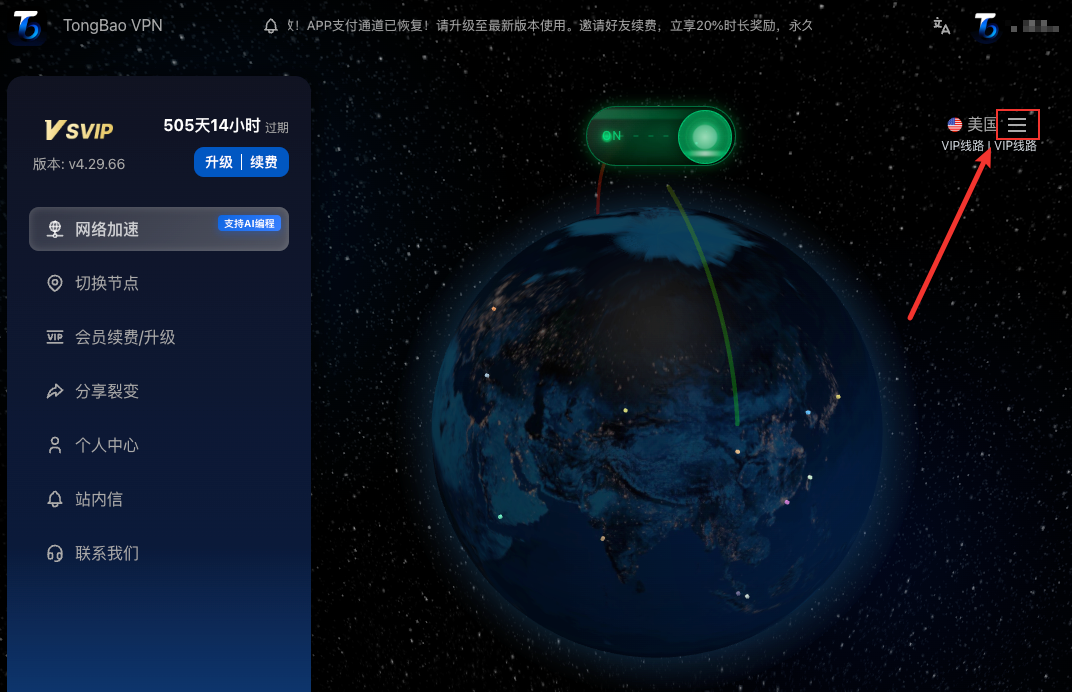
Open Tongbao VPN client (www.tongbaovpn.com).
-
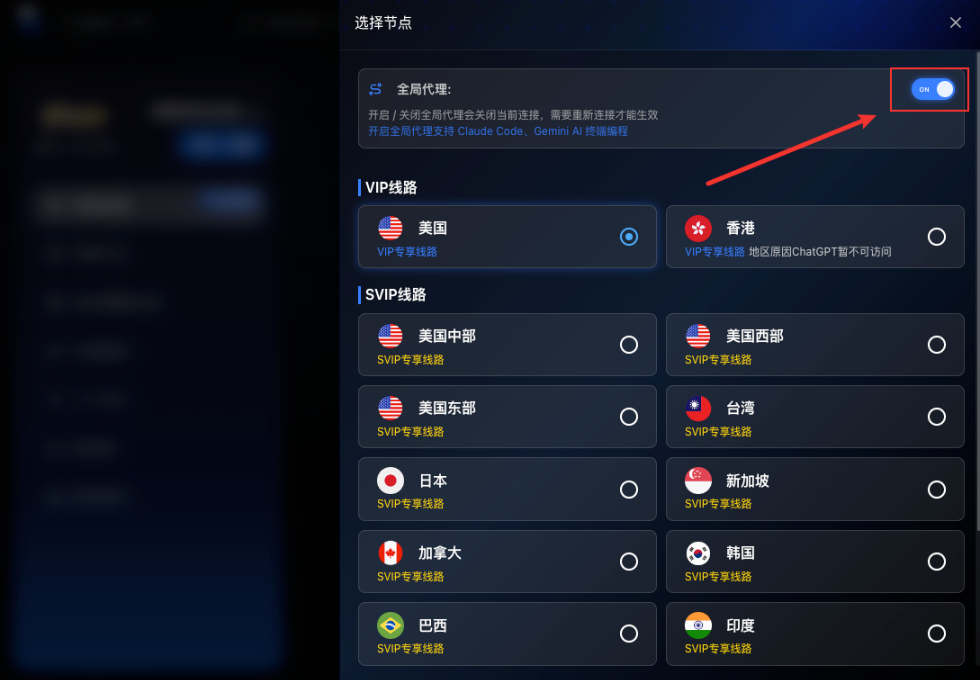
Select a stable server in USA or Hong Kong.
-
Enable Global Proxy Mode: Ensure all computer traffic routes through Tongbao's accelerated channel.
Step 3: Manually Configure Proxy in Telegram (Core Step)
If Telegram still shows "Connecting" after the first two steps, configure internal settings:
-
Click the shield icon in the top-right corner of Telegram login page, enter Settings.
-
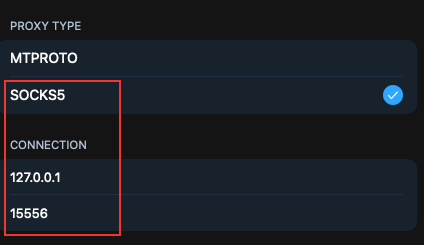
Select Add Proxy, choose SOCKS5 type.
-
Server (Hostname): Enter
127.0.0.1 -
Port: Enter
15556 -
Click Done and save.
-
Close and restart Telegram. You'll find you can log in normally!
Why Recommend Tongbao VPN?
-
Native Support: Tongbao VPN's local port is specially optimized, fully compatible with
127.0.0.1:15556protocol. -
Low Latency: Dedicated Telegram acceleration channel—images and videos load instantly without lag.
Official Website: www.tongbaovpn.com
Pro Tip: If it still won't connect after configuration, check if you've completely closed the Telegram process and restarted. Use Tongbao VPN to keep your social communication always online!