
How to Install TongbaoVPN on iPhone: No Invitation Code Needed (Quick Guide)

Many iOS users get thrown off by that giant "Invitation Code" button in TestFlight when trying to install TongbaoVPN. Key point: installing TongbaoVPN does NOT require any invitation code! Just follow this simple two-step flow for a one-tap install.
iOS Fast-Track Install Guide (Skip the Invitation Code Trap)
Step 1: Basic Prep (download only, don't open yet)
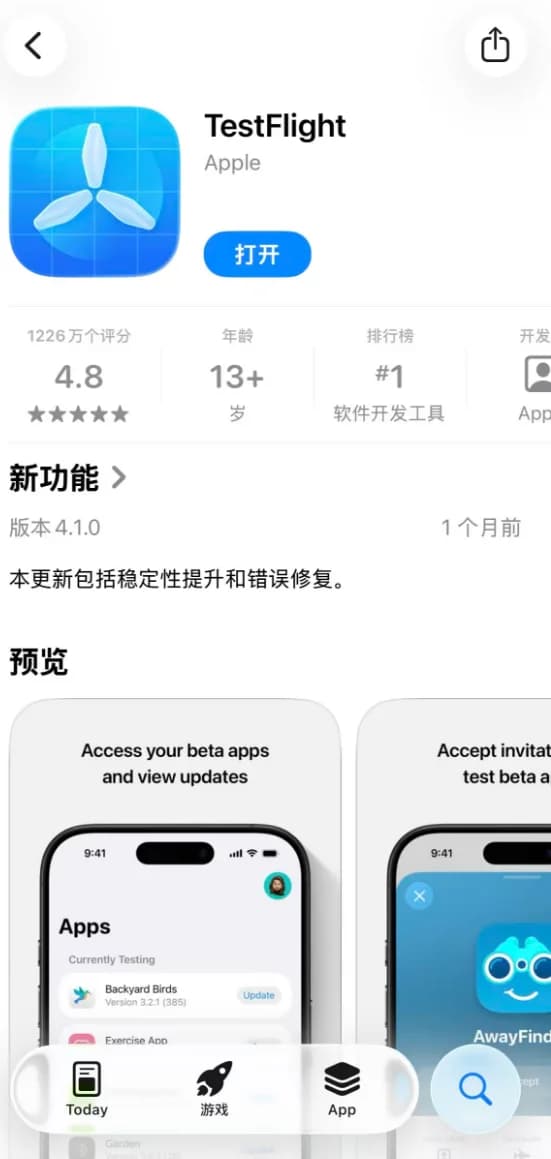
Search for and download "TestFlight" from the App Store.
Important: After installing TestFlight, go straight back to the home screen — don't open TestFlight to look for an "invitation code"! That button is for private beta developers. We're using the more advanced public beta mode.
Step 2: Activate the Install (the key step)
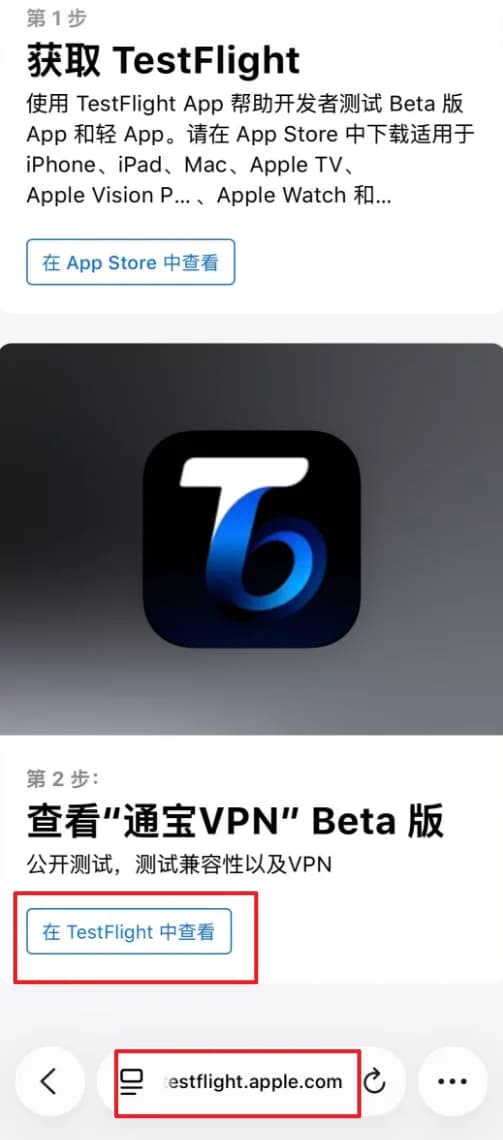
Open Safari on your iPhone and tap or copy the following dedicated public beta link:
https://testflight.apple.com/join/7q1QbK7T
Step 3: One-Tap "Accept"
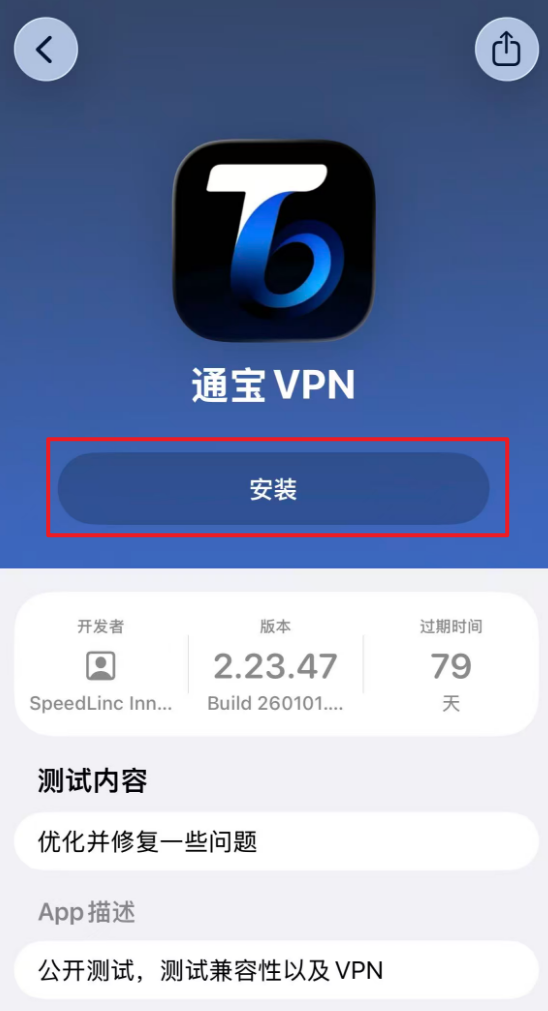
Once you're on the link, scroll down and tap the "Get TongbaoVPN" button — it will jump to TestFlight. Wait for the TongbaoVPN download page to load, then just tap "Install". If the download page doesn't appear, force-close TestFlight and repeat steps 1 and 2.
[Notes]
1. The iPhone public beta build has a validity period. Watch for new TongbaoVPN builds in TestFlight and keep it up to date, otherwise it may stop working.
2. Do NOT delete TestFlight from your iPhone — doing so may prevent updates and normal use.
3. In-app purchase and renewal prices on iPhone are higher than on other platforms. To purchase or renew, please do so on Mac, Android, or Windows. Memberships bought or renewed on other platforms will sync automatically to iPhone under the same account.
Haven't installed TongBao VPN yet?
2026 latest kernel, supports smooth access to ChatGPT, YouTube 4K
目录