
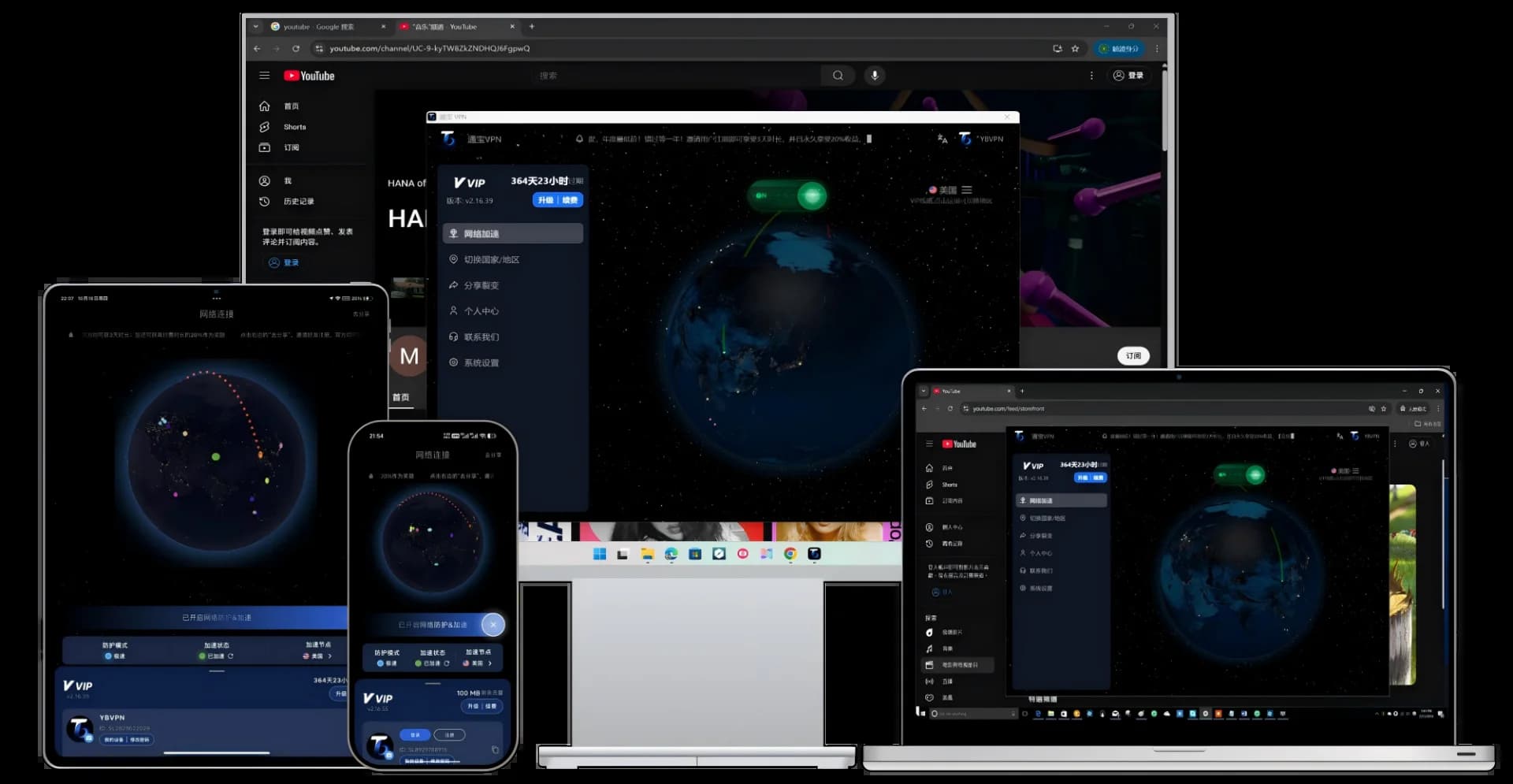
Need a VPN for your computer but not sure which one to pick or how to set it up? This guide is written for Windows and Mac users, covering everything from choosing the right VPN to downloading, installing, and optimizing your settings. Whether you use your PC for work, AI tools, or streaming, you'll find a solution here.
1. How to Choose a PC VPN: 5 Key Factors
Desktop VPNs differ from mobile VPNs in important ways. Computers typically run browsers, development tools, office apps, and more simultaneously, demanding stronger system-wide proxy capabilities and stability. Focus on these key metrics:
| Factor | Why It Matters | Benchmark |
| System-wide Proxy | Ensures all app traffic routes through the VPN with no leaks | TUN mode or OS-level proxy support |
| Speed | PCs handle large downloads and high-res video | Stable 50 Mbps or above |
| Stability | No disconnections during extended use | 99%+ uptime |
| Cross-platform | One account works on desktop and mobile | Windows + Mac + mobile support |
| Security | Protects sensitive files and data on your PC | AES-256 encryption + Kill Switch |
2. Best PC VPNs of 2026: Our Rankings
#1: TongbaoVPN (Best Overall)
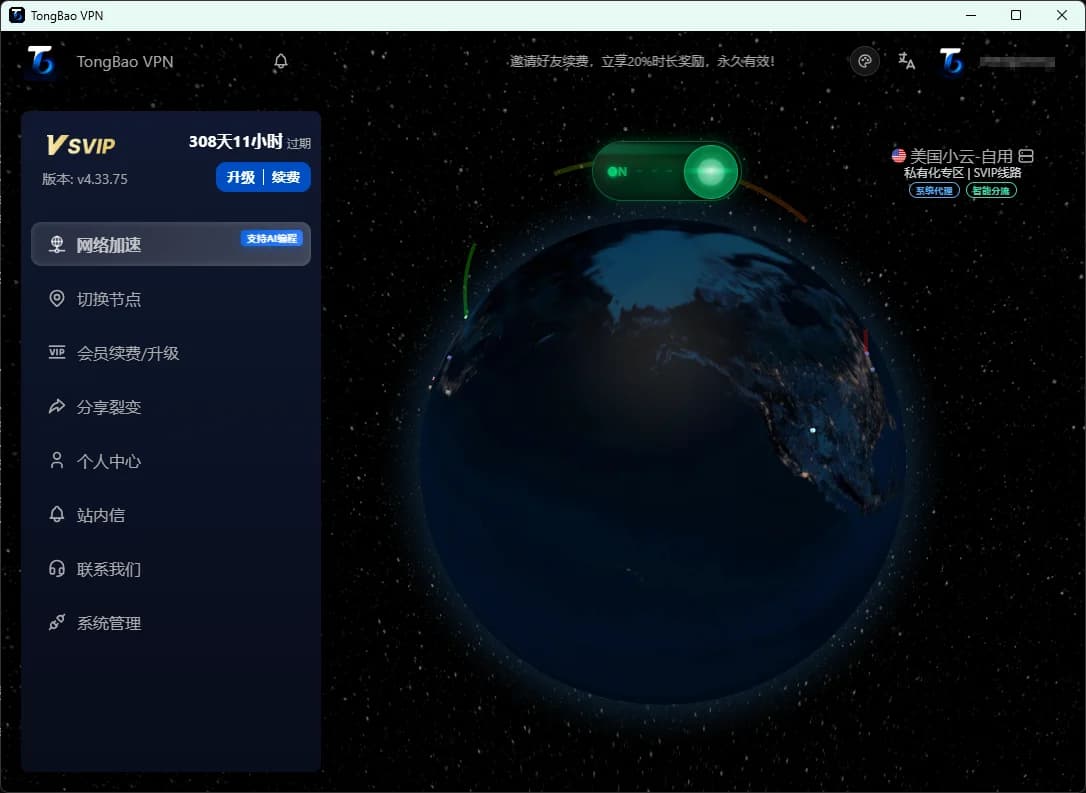
- Platform Support: Windows 10/11, macOS 12+, Linux (Ubuntu/Debian)
- Core Advantage: Native TUN mode — creates an encrypted tunnel at the OS kernel level, automatically encrypting all app traffic without per-app proxy configuration
- Network Technology: IEPL dedicated lines that bypass the public internet, with latency as low as 30–50 ms
- Free Tier: 3-day full-feature trial on signup + 200 MB of free daily traffic, permanently
- AI Tool Compatibility: Residential IP nodes for stable connections to ChatGPT, Claude, and Gemini
- Download: tongbaovpn.com/download
Why is TongbaoVPN especially recommended for PC users?
Many VPNs only offer "browser proxy" mode on desktop, leaving terminal commands, dev tools (VS Code, Cursor), and design apps (Figma) outside the VPN tunnel. TongbaoVPN's TUN mode takes over all network traffic at the system level — one click and every app is accelerated. It's particularly developer- and designer-friendly.
#2: ExpressVPN
- Covers 94 countries with a mature client
- Downsides: No Alipay support, expensive ($12.95/mo), unreliable connections from mainland China
- Best for: Users based overseas
#3: NordVPN
- 6,000+ global servers with rich security features
- Downsides: Inconsistent speeds from China, no free trial
- Best for: Overseas users or security-focused enterprises
#4: Clash (Self-hosted)
- Open-source proxy tool, highly customizable
- Downsides: Requires your own node subscription, steep learning curve, Clash for Windows is discontinued
- Best for: Technically proficient users
3. Windows VPN Installation Guide
Using TongbaoVPN as an example, here is the full installation process on Windows:
Step 1: Download the Installer
- Visit the TongbaoVPN official download page
- Click the "Windows Download" button
- Download the
.exeinstaller (approximately 50 MB)
Note: Always download from the official website. Third-party download sites found via search engines may contain malware.
Step 2: Install the Software
- Double-click the downloaded installer
- If "Windows Defender SmartScreen" appears, click "More info" → "Run anyway"
- Install using the default path (takes about 30 seconds)
- After installation, the TongbaoVPN icon will appear on your desktop
Step 3: Register and Connect
- Open TongbaoVPN and click "Sign Up" to create an account (email registration supported)
- After logging in, the main screen will display recommended nodes
- Click "Quick Connect" and wait a few seconds for the connection to establish
- Once connected, a VPN icon will appear in the system tray, indicating all traffic is encrypted
Common Windows Issues
- Antivirus blocking: Add TongbaoVPN to your Windows Defender or third-party antivirus whitelist
- Won't launch: Right-click and run as administrator
- Web pages won't load after connecting: Try switching nodes or changing the protocol in settings
Full step-by-step tutorial: Detailed Windows TongbaoVPN Installation Guide
4. Mac VPN Installation Guide
Step 1: Download the Installer
- Visit the TongbaoVPN official download page
- Click "macOS Download"
- M1/M2/M3/M4 chip users should select the ARM version; Intel chip users should select x64
Step 2: Install the Software
- Double-click the downloaded
.dmgfile - Drag the TongbaoVPN icon into the "Applications" folder
- On first launch, macOS may warn that the developer cannot be verified
- Go to "System Settings → Privacy & Security" and click "Open Anyway"
- macOS will request permission to install a "Network Extension" — click "Allow" and enter your system password
Step 3: Connect and Use
- Log in to your account
- Click Quick Connect
- A VPN icon in the menu bar confirms a successful connection
Common Mac Issues
- "App is damaged" warning: Open Terminal and run
xattr -cr /Applications/TongbaoVPN.app - Network Extension installation failed: Ensure macOS 12.0 or later and allow the extension in System Settings
Detailed tutorial: Mac Installation Troubleshooting
5. PC VPN Optimization Tips
1. Choose the Best Node
Different use cases call for different nodes:
- AI Tools (ChatGPT/Claude/Gemini): Select nodes tagged "AI Optimized" with residential IPs, in the US or Japan
- Video Streaming (YouTube/Netflix): Choose US or Japan nodes for higher bandwidth
- Cross-border Work (Google/Notion/Slack): Choose Hong Kong or Singapore nodes for the lowest latency
- Not sure which to pick?: Use "Smart Recommendation" to let the system match you with the optimal node
2. Enable Kill Switch
PCs often have background apps connecting to the internet (email clients, cloud storage sync, etc.). With Kill Switch enabled, the system automatically cuts internet access if the VPN drops unexpectedly, preventing real IP exposure. TongbaoVPN enables this by default — we recommend keeping it on.
3. Set Up Auto-connect on Startup
Enable "Auto-connect on startup" in TongbaoVPN settings to skip the manual step each time. This is especially useful for daily office VPN users.
4. Terminal Proxy (Developers)
If you use command-line tools (git, npm, pip, etc.), TongbaoVPN's TUN mode automatically routes terminal traffic through the VPN — no need to manually set HTTP_PROXY environment variables. This is a major advantage over traditional proxy tools.
6. Is a Free PC VPN Enough?
| Use Case | Free Plan Sufficient? | Recommendation |
| Occasional research and email | Yes | TongbaoVPN's 200 MB daily free traffic |
| Daily ChatGPT/Claude use | Barely | VIP plan recommended — residential IPs are more stable |
| YouTube/Netflix streaming | No | VIP plan recommended — unlimited traffic |
| Full-time cross-border work | No | SVIP plan recommended — IEPL dedicated lines |
| Development / large downloads | No | SVIP plan recommended — 100 Mbps+ speeds |
7. FAQ
Q1: Can I use the same VPN account on both Windows and Mac?
Yes. TongbaoVPN supports multiple devices online simultaneously. One account works on Windows, Mac, and mobile at the same time.
Q2: Will a PC VPN slow down my internet?
Slightly, but a good VPN has minimal impact. TongbaoVPN uses IEPL dedicated lines with less than 10% measured speed loss — barely noticeable in everyday use. Low-quality free VPNs can cause speed drops of 50% or more.
Q3: Can I install a VPN on a work computer?
It depends on your company's IT policies. If admin privileges are restricted, installation may not be possible. We recommend checking with your IT department. TongbaoVPN does not require complex system permission changes and can be installed with standard user privileges.
Download TongbaoVPN now and connect your PC to the global network.